
Xandão Dev
Membros
-
Registro em
-
Última visita
Tudo que Xandão Dev postou
-
 Bom dia galera, alguém pode me ajudar onde fica a parte que define o tempo do item desaparecer no chão ? E a quantidade que cai máxima no mapa ? Pq as vezes simplesmente quando enche demais o chão para de aparecer itens que estão dropando e só relogando para voltar.
 -
Ninguém para dar essa força ?
-
Conselho do Alucard é pura verdade. Eu estou a 4 anos em uma Source só, já corrigi tanto problema e adicionei tantas coisas que não da nem para mencionar. Peguei source Vazada a uns 6 anos atras e comecei corrigir e estudar me baseando no original, mas é tanto bug e tanto código mal feito que tem hora que vc quer desanimar. Ainda estou com servidor aberto e tentando o sonho de ter o servidor top, mas é um caminho foda demais e cheio de obstáculos cada vez mais cabuloso. Mas hoje como o Alucard disse ai, cheio de players tóxicos e que só quer zuar, e vc tem que saber filtrar e não dar ouvidos e nem se vender para ninguém. Assim você tem sucesso a longo prazo, pq de um dia pro outro priston nenhum ficou bom.
-
Bom dia galera! Estou tendo um problema no reconnect na source do PKDosCria, Fronzen derivados!! Eu já tirei o return na parte do addreconnect na csocketserver.cpp e quando sumulo desconectar e o cliente manda o pacote de retorno ele entra no addreconnect mas não chama o TryReconnectUser. Não ta entrando nesse case. case smTRANSCODE_CONT_OBJSERIAL: lpTransChatMessage = (TRANS_CHATMESSAGE*)psPacket; if (SOCKETSERVER->TryReconnectUser(lpPlayInfo->lpsmSock, lpTransChatMessage->szMessage, lpTransChatMessage->dwIP)) { lpPlayInfo->TransInfoFlag = TRUE; } else { DISCONNECTUSER(lpsmSock); goto quit; } break;Já conferi as #Define estão iguais nos dois Struct tbm estão iguais. Mas o pacote que o cliente manda nunca chega nessa case para chamar o tryreconnect. Qualquer ajuda já agradeço.
-
Consegui entender a lógica. Eu tinha resolvido quando eu comecei a ver o Aging e o Mix. Mas valeu a ideia foi exatamente o que eu fiz e deu certo!
-
Bom dia galera! Uso a Source PKDosCria, Frozen etc... Derivados !! Percebi que com essa Engine não funciona mais colocar o codigo RGB direto no item do 100 na OpenItem. Percebi tbm que ela usa XML para isso. itemQuestMaterial = new Graphics::Material(); itemQuestMaterial->Load("game\\materials\\items\\itemquest100.xml", true); Porém itemQuestMaterial nunca é chamado em lugar nenhum no código para definir quem é item da Quest do 100 para aplicar o efeito. Alguém tem uma ideia de onde colocar para ele funcionar de forma certa igual já funciona os itens com Aging e Mix ? Agradeço qualquer ajuda ^^
-
Exatamente eu vi tudo isso, porém existe alguma forma de fazer um reload no .dat do postbox sem ter que relogar ?
-
Boa noite galera. Estou querendo resolver um bug que to quebrando a cabeça aqui para entender pq toda vez que recebo item no distribuidor eu consigo pegar só uma vez ai se recebo dnv tem que relogar para pegar o proximo. Queria entender como faço para atualizar em tempo real sem ter que ficar relogando toda hora. Minha Source é base Frozen. Agradeço quem puder dar uma força
-
Entendi, vou procurar usar essa pratica que vc esta falando então! Valeu
-
Especifica melhor o que vc precisa amigo ?
-
Bom dia galera ! Eu estou estudando a função de Salvar itens no bau mas me deparei um limite de 32 Itens só no bau, tipo se vc colocar 32 Sheltons ainda sobrará slots ali visualmente mas não entra mais nada além de 32 Itens e tem mais espaço de peso. vendo essa função aqui: int SaveWareHouse(sWAREHOUSE* lpWareHouse, TRANS_WAREHOUSE* lpTransWareHouse) { TRANS_WAREHOUSE TransWareHouse; TRANS_THROW_ITEMS TransThrowItems; sWAREHOUSE WareHouseCheck; int CompSize; int cnt; DWORD dwChkSum; char szComp1, szComp2; int flag; if ( lpTransWareHouse ) flag = 1; else flag = 0; if ( !flag && QuitSave ) return FALSE; for( cnt=0;cnt<300;cnt++) { if ( !lpWareHouse->WareHouseItem[cnt].Flag ) { ZeroMemory( &lpWareHouse->WareHouseItem[cnt] , sizeof(sITEM ) ); } } CompSize = EecodeCompress( (BYTE )lpWareHouse , (BYTE )TransWareHouse.Data , sizeof(sWAREHOUSE) , sizeof( sITEM )*100 ); //¿ë·® ýũ if ( !flag && CompSize>(smSOCKBUFF_SIZE-256) ) return FALSE; if ( flag && CompSize>(smSOCKBUFF_SIZE-140) ) return FALSE; DecodeCompress( (BYTE )TransWareHouse.Data , (BYTE )&WareHouseCheck , sizeof(sWAREHOUSE) ); szComp1 = (char *)lpWareHouse; szComp2 = (char *)&WareHouseCheck; dwChkSum = 0; for( cnt=0;cnt<sizeof(sWAREHOUSE);cnt++ ) { if ( szComp1[cnt]!=szComp2[cnt] ) { return FALSE; } else { dwChkSum += szComp1[cnt]*(cnt+1); } } //â°í°¡ ¿·ÈÀ»¶§¿Í ´ÝÇûÀ»¶§ÀÇ µ·ÀÇ Â÷¸¦ °Ë»çÇϱâ À§ÇÑ º¯¼ö WareHouseSubMoney += (CompWareHouseMoney-lpWareHouse->Money); CompWareHouseMoney = 0; if (!flag) { //µ¥ÀÌŸ ¼¹ö¿¡ ¾ÆÀÌÅÛ ÀúÀå ¿ä±¸ ( º¹»ç ¾ÆÀÌÅÛ ¹æÁö ) SendSaveMoney(); //µ· TransThrowItems.ThrowItemCount = 0; for( cnt=0;cnt<THROW_ITEMS_MAX;cnt++) { if ( lpWareHouse->WareHouseItem[cnt].Flag ) { TransThrowItems.ThrowItems[TransThrowItems.ThrowItemCount].dwCode = lpWareHouse->WareHouseItem[cnt].sItemInfo.CODE; TransThrowItems.ThrowItems[TransThrowItems.ThrowItemCount].dwHead = lpWareHouse->WareHouseItem[cnt].sItemInfo.ItemHeader.Head; TransThrowItems.ThrowItems[TransThrowItems.ThrowItemCount].dwChkSum = lpWareHouse->WareHouseItem[cnt].sItemInfo.ItemHeader.dwChkSum; TransThrowItems.ThrowItemCount++; } } //µ¥ÀÌŸ ¼¹ö¿¡ ¾ÆÀÌÅÛ ÀúÀå ¿ä±¸ ÃÖ´ë 32°³ µ¿½Ã ( º¹»ç ¾ÆÀÌÅÛ ¹æÁö ) SendSaveThrowItems( &TransThrowItems ); } TransWareHouse.code = smTRANSCODE_WAREHOUSE; TransWareHouse.size = sizeof(TRANS_WAREHOUSE)-(sizeof(sWAREHOUSE)-CompSize); TransWareHouse.DataSize = CompSize; TransWareHouse.dwChkSum = dwChkSum; TransWareHouse.wVersion[0] = Version_WareHouse; TransWareHouse.wVersion[1] = 0; if ( !flag ) { //µ· ÀúÀå ( ¼¹ö¿¡¼ »ç¿ëÇÒ ³»¿ë / ºÒ·¯¿Ã¶§´Â ¼¹ö¿¡¼ ÃʱâÈ ÇØÁà¾ß ÇÔ ) TransWareHouse.WareHouseMoney = lpWareHouse->Money ^ (dwChkSum^smTRANSCODE_WAREHOUSE); TransWareHouse.UserMoney = lpCurPlayer->smCharInfo.Money ^ (dwChkSum^smTRANSCODE_WAREHOUSE); } TransWareHouse.dwTemp[0] = 0; TransWareHouse.dwTemp[1] = 0; TransWareHouse.dwTemp[2] = 0; TransWareHouse.dwTemp[3] = 0; TransWareHouse.dwTemp[4] = 0; dwLastWareHouseChkSum = dwChkSum; //ÃÖÁ¾ ÀúÀå â°í ÄÚµå if ( flag ) { memcpy( lpTransWareHouse , &TransWareHouse , sizeof(TRANS_WAREHOUSE) ); return TRUE; } if ( TransWareHouse.size>smSOCKBUFF_SIZE ) TransWareHouse.size = smSOCKBUFF_SIZE; if ( smWsockDataServer ) { smWsockDataServer->Send2( (char *)&TransWareHouse , TransWareHouse.size , TRUE ); SaveGameData(); //°ÔÀÓÀ» ÀúÀå return TRUE; } return FALSE; } Percebi que THROW_ITEMS_MAX = 32 porém se eu aumento ainda sim não funciona. Alguém tem alguma ideia melhor de aumentar o limite ?
-
Pow valeu em cara, eu só não tinha prestado atenção nessa parte !lpCharSelPlayer && no cliente rsrs. Mas é vivendo e aprendendo. Muito obrigado pela ajuda tamo junto ^^
-
Boa Tarde Galera ! Minha Sacer só manda VL se clicar no Personagem especificio. Gostaria de colocar para mandar para todo o grupo de uma vez que estiver perto igual skill do Valor por exemplo. Procurei bastante na Source já mas ainda não encontrei como copiar a ideia do Valor. Source Base FrozenPK
-
Valeu pela ajuda ^^
-
Boa tarde galera !!! Alguém poderia me dar uma ideia de como adicionar um Premium para ativar AutoLoot de Gold ? Source minha é Base FrozenPK
-
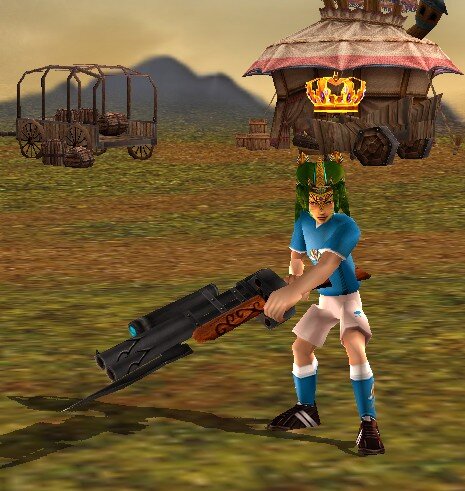
Bom dia galera, Alguém de vcs sabe como resolver esse pivot dos arcos CrossBow ? Eles estão inseridos na tabela de crossbow porém não fica certo na mão.
-
Exatamente, não existe no oficial. Esses mapas são antigos em kk' 2009 pra cima se não me engano.
-
Na verdade eu to estudando, mas se alguém já tiver um noção maior e puder me ajudar seria mais tranquilo.
-
Boa noite galera. Como eu faço para adicionar as montarias nos personagens novos Xamã e Assassina na Source Frozen ? Elas estão renderizando somente nas 8 classes antigas.
-
Encontrei onde muda no código para adicionar mais itens no MIX. Só alterar nessa linha aqui a quantidade que quer que o código percorra na leitura. for (i = 0; i < MAX_CRAFTITEM_INFO; i++) { for (j = 0; j < 10; j++) { //¹«±â ÄÚµå °Ë»ç // Era 8 alterei para 10 Não esquecer de alterar essa linha aqui tbm para compilar certo quando adicionar mais armas no mix. DWORD MainItemCode[10]; // Era 8 alterei para 10 Fazendo somente isso já consegue fazer o mix aceitar mais itens.
-
Adicionar no aging foi mais facil. o Mix é meio embaralhado os códigos.
-
No meu caso os MIX funcionam perfeitamente até as 8 Armas originais antes de existir as novas classes. Ai preciso só saber onde adiciona para aceitar as novas armas de assassina e xamã.
-
O meu é direto na source, não uso SQL.
-
Boa tarde galera, eu estou adicionando a Assassina e o Xamã na minha source (Base Frozen) e queria saber como adicionar mais itens no mix. Exemplo aqui: { 1, { sinWA1, sinWC1, sinWH1, sinWM1, sinWP1, sinWS1, sinWS2, sinWT1, sinWD1, sinWN1 }, adicionei a Adaga e o Fantasma, porém não reconhece no mix ainda. Só esta lendo até a sinWT1 lança. Eu até aumentei a struct para aceitar adicionar as 2 armas. ///// Å©·¡ÇÁÆ® ¾ÆÀÌÅÛ struct sCRAFTITEM_INFO { int iMixType; DWORD MainItemCode[10]; //Á¶ÇÕÇÒ ¾ÆÀÌÅÛ ÄÚµå int AddItem[25]; //Ãß°¡ÇÒ ¾ÆÀÌÅÛ (½©ÅÒ) int PlusElementCode[8]; //Ãß°¡µÉ ¿äÀÎ float AddElement[8]; //Ãß°¡µÈ ¼öÄ¡ int ElementKind[8]; //¼öÄ¡ÀÇ ±âÁØ (+ % ¼Ò¼ö) char Doc[256]; //¼³¸í };Porém ainda tem outra parte do código que não achei para aceitar a sinWD1 e sinWN1.
-
Mas isso só acontece para quem esta vendo, eu consigo ver o personagem pelado certinho. Só na tela do outro jogador que fica na Array 15.